🌐 Internet Setup
Arch uses
systemd . Below is
the command I used:services to manage networking. By default,
NetworkManager may be active, but for a lighter setup I prefer iwd
(iwctl).
Stop NetworkManager and start iwd:
code
          sudo systemctl stop NetworkManager
sudo systemctl start iwd
iwctl
station wlan0 connect-hidden SSID
iwctlis the command-line client for iwd.station wlan0 connect-hidden SSID1connects to a hidden WiFi.
📶 Bluetooth
Bluetooth is disabled by default. Here’s how to enable and pair devices:
code
          sudo systemctl enable --now bluetooth
systemctl status bluetooth
power on
agent on
default-agent
scan on
pair D9:41:EC:B0:91:92
enable --nowmakes it start immediately and on boot.scan onlists nearby devices.pair "MAC"pairs with the device.
🔊 Audio
Arch is switching to PipeWire, which replaces PulseAudio and JACK. I install the full set for compatibility.
Stop NetworkManager and start iwd:
code
          pavucontrol
sudo pacman -S pipewire pipewire-alsa pipewire-audio pipewire-pulse alsa-utils
pavucontrolgives you a nice GUI to control audio.- PipeWire ensures better audio management and fewer bugs.
🔋 Battery Monitoring
To check battery health:
code
          upower -i $(upower -e | grep BAT)
upower -i $(upower -e | grep BAT) | grep -E "percentage|capacity"
- Shows current battery level and overall health/capacity.
💻 Software Installation
The first apps I install after a fresh Arch setup:
code
          # Browsers & tools
sudo pacman -S firefox gthumb nautilus kitty
yay -S spotify-launcher google-chrome brave-browser fish
kitty→ terminalfish→ better shell with autocompletenautilus→ file managergthumb→ image viewer
Switching to Fish shell
code
          which fish
echo /usr/bin/fish | sudo tee -a /etc/shells
chsh -s /usr/bin/fish
- This makes Fish your default shell.
🖥 Ax-Shell for Hyprland
Ax-Shell gives Hyprland additional shell features.
code
          sudo pacman -S git base-devel
curl -fsSL https://raw.githubusercontent.com/Axenide/Ax-Shell/main/install.sh | bash
🖼 Fixing Resolution Issues
Some apps scale weirdly on HiDPI screens. Fix it by adding to Hyprland config:
code
          xwayland {
  force_zero_scaling = true
}
💾 Mounting Other Drives
Temporary (manual each time)
code
          lsblk
sudo mkdir -p /mnt/nvme1n1p{3,4,5}
sudo mount /dev/nvme1n1p3 /mnt/nvme1n1p3
sudo mount /dev/nvme1n1p4 /mnt/nvme1n1p4
sudo mount /dev/nvme1n1p5 /mnt/nvme1n1p5
Permanent (auto-mount on boot)
Edit /etc/fstab and add your partitions using their UUIDs. Example:
code
          UUID=--------   /mnt/sda1  ntfs-3g defaults,noatime   0 0
UUID=---------  /mnt/nvme1n1p2 ext4 defaults,noatime   0 2
✨ Transparency for Windows
Hyprland allows setting window opacity. Add to config:
code
          windowrulev2 = opacity 0.80 0.80,class:^(Spotify)$
windowrulev2 = opacity 0.80 0.80,class:^(Code)$
windowrulev2 = opacity 0.80 0.80,class:^(org.gnome.Nautilus)$
🐙 GitHub Setup
First, check everything is installed:
code
          node -v
npm -v
git --version
gh --version
sudo pacman -S github-cli
Login and create repo:
code
          gh auth login
gh repo create projectname --private --source=. --push
SSH SetupSSH Setup
code
          ssh-keygen -t ed***** -C "**********@gmail.com"
cat ~/.ssh/id_*******.pub
Paste the key into GitHub → Settings → SSH Keys.
Then test connection:
code
ssh -T git@github.com
📂 File Manager Preview
Add a quick preview feature:
code
sudo pacman -S sushi
Add a quick preview feature:
code
windowrulev2 = float, class:^(org.gnome.NautilusPreviewer)$
🔊 Volume Boost
code
wpctl set-volume @DEFAULT_AUDIO_SINK@ 2
Doubles your volume limit.
⌨️ Key Mapping
Example: remap CapsLock → Ctrl
code
          input {
    kb_options = ctrl:nocaps
    kb_layout = us,ara
    kb_options = grp:alt_shift_toggle
}
🌑 Nautilus Dark Theme
Install portals and config tools:
code
sudo pacman -S xdg-desktop-portal xdg-desktop-portal-gtk xdg-desktop-portal-hyprland dconf gsettings-desktop-schemas
🔍 FZF (File Search)
Install:
code
sudo pacman -S fzf bat
Fish config (~/.config/fish/config.fish):
code
          fzf --fish | source
set -Ux FZF_DEFAULT_COMMAND "find /mnt -type f -not -path '/proc/*' -not -path '/sys/*' -not -path '/dev/*' 2>/dev/null"
set -Ux FZF_DEFAULT_OPTS "--preview 'bat --style=numbers --color=always {}' --preview-window=right:40%"
Now you can fuzzy search files with preview!
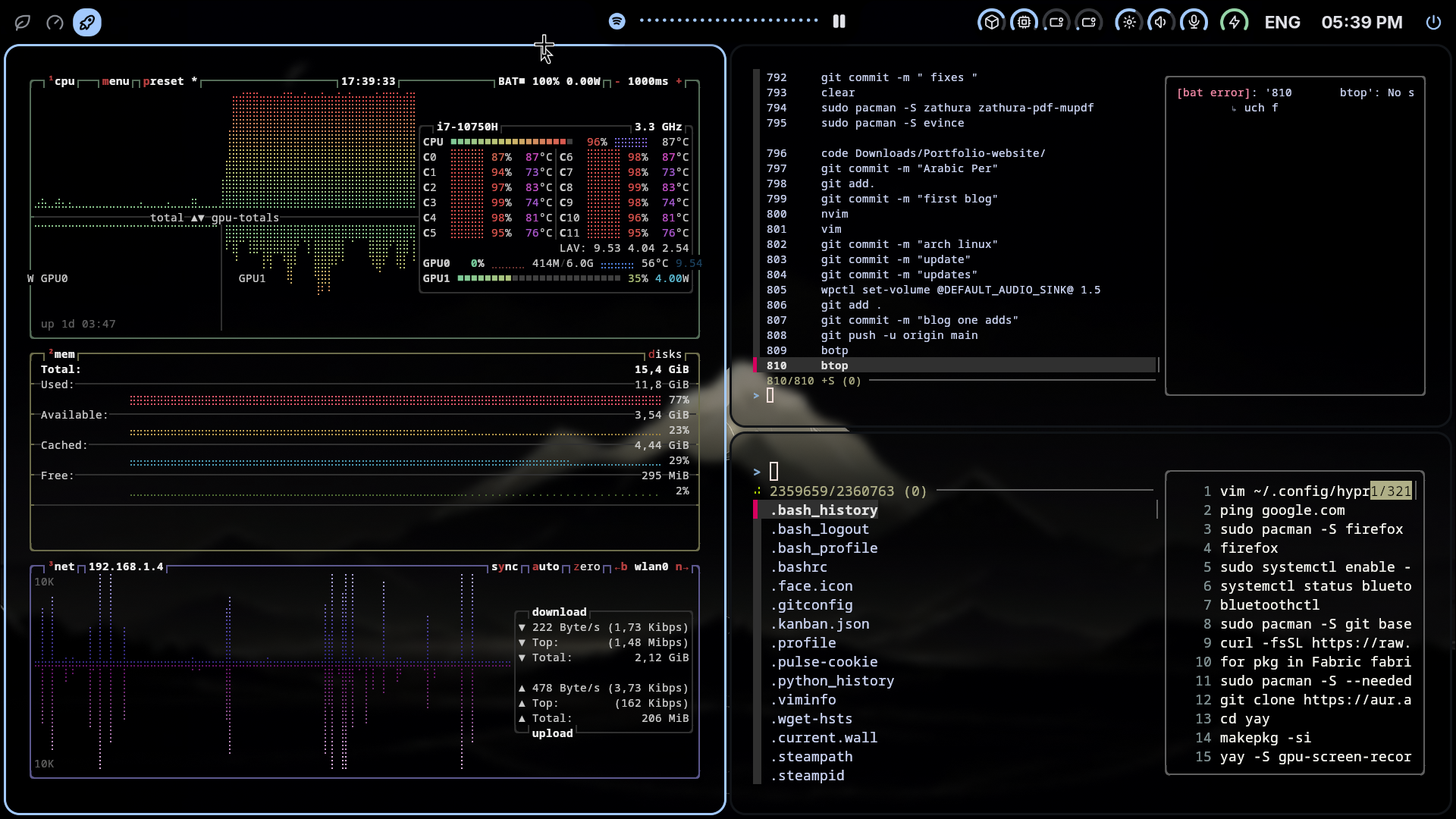
🖥 Task Manager
code
          sudo pacman -S btop
btop
🖼 System Info
code
          sudo pacman -S fastfetch
fastfetch
🧹 Clear Memory Cache
code
free -h